


Daxko Membership System
You Can Now Update Your Daxko Profile!
 Follow the steps below to update your profile in our Daxko online member management system. If you have any questions, please contact our staff at the front desk or by calling 607-753-9651.
1) Visit bit.ly/ywca-cortland-online-account-management, and the screen below will load, where you can search for your account online
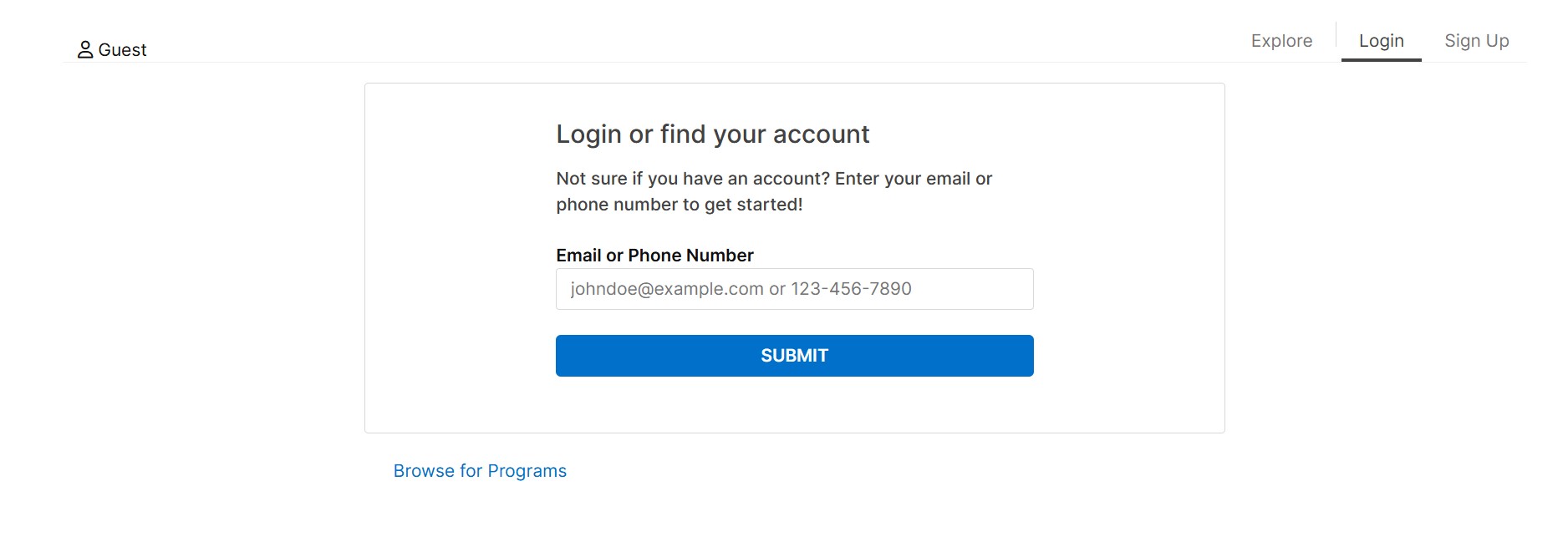
2) Enter an email address or phone number to search for your account and create your password.
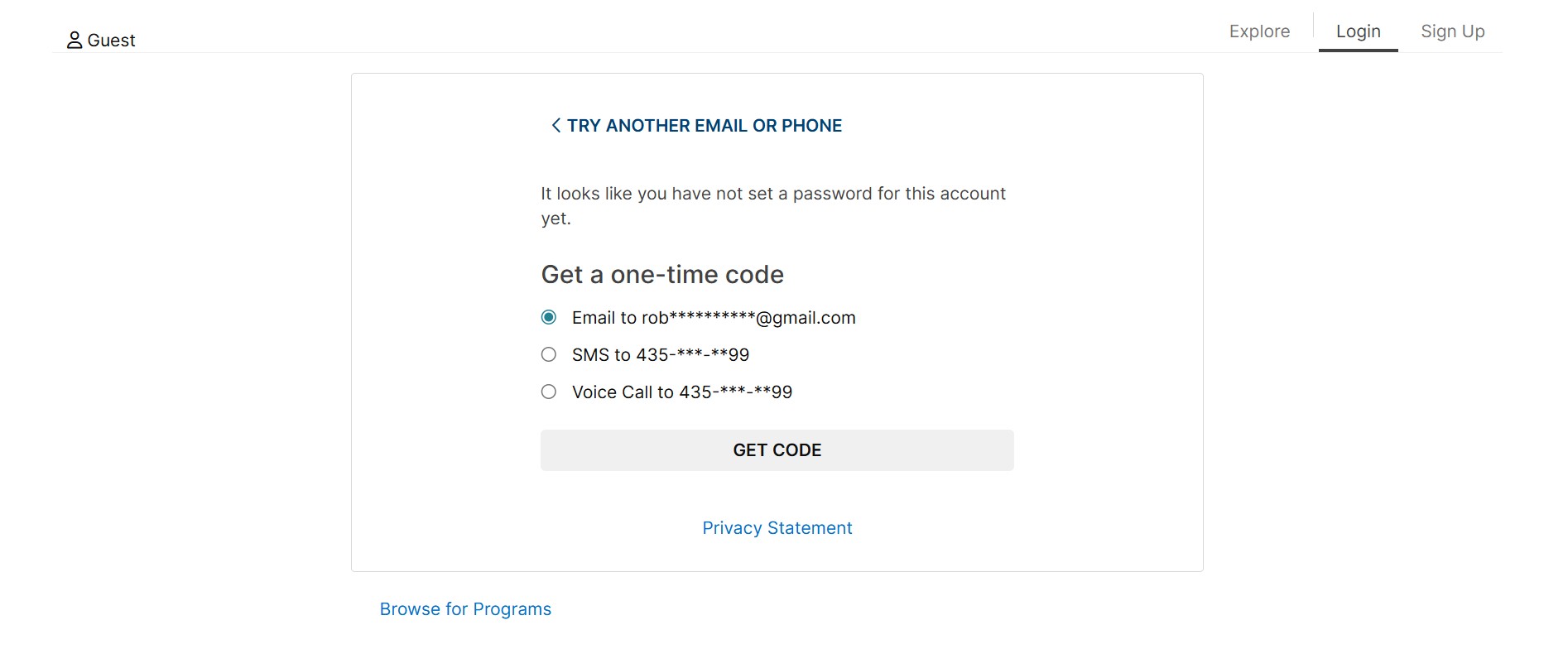
a) If you used an email address or phone number we had on file for you in our previous membership management system, the screen below will load, inviting you to create a password. Please select your preferred method to receive a one-time code, then click the ‘GET CODE’ button to continue.
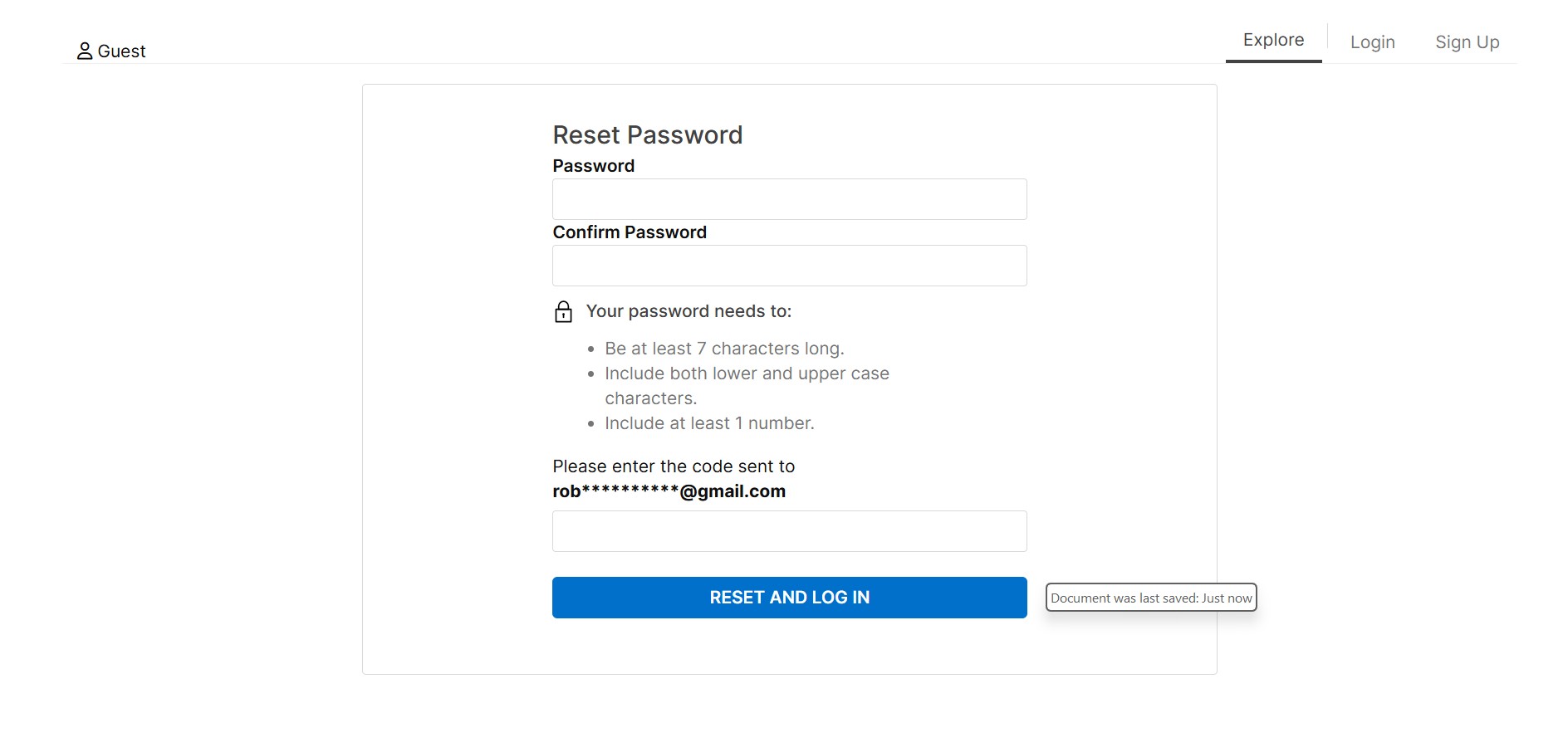
b) Once you click the ‘GET CODE’ button, the following screen will appear, asking you to create a password. Please enter your desired password and confirm it. Also, enter the code that was sent to you by email, text message, or by a voice call, and click the blue ‘RESET AND LOG IN’ button.
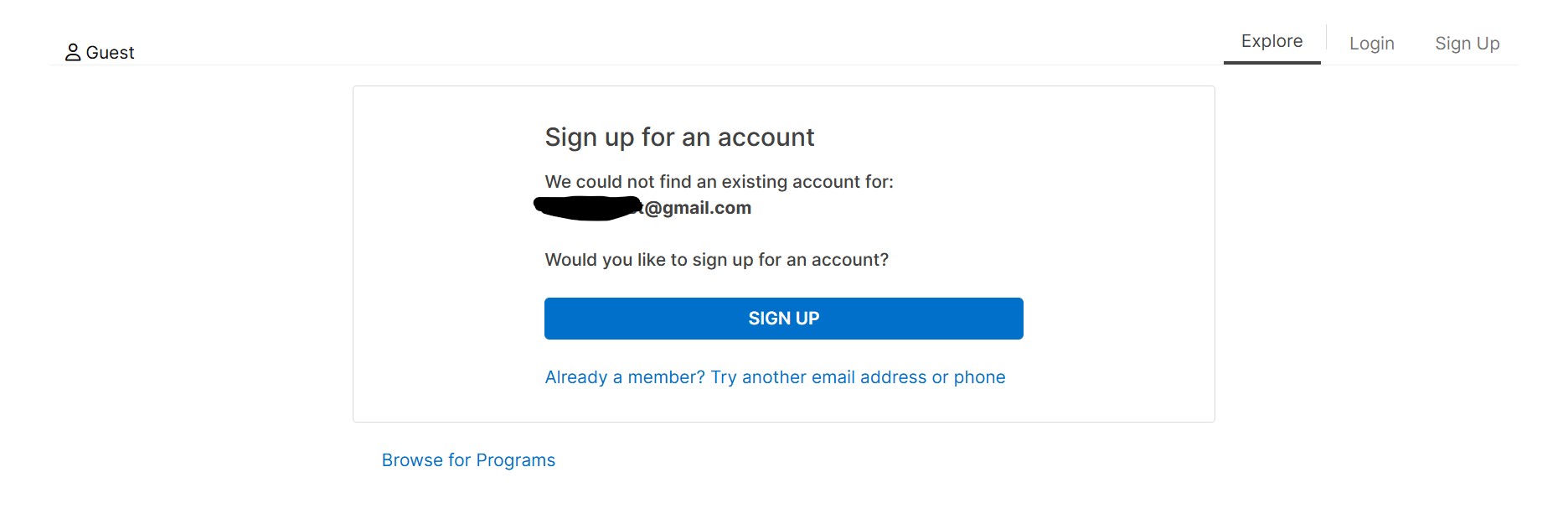
c) If you used an email address or phone number that we didn’t have on file for you in our previous membership management system, the screen below will load, prompting you to try another email address or phone number. Try any email address or phone number you may have used at the YWCA to find your account, so you don’t create a duplicate account. If you have trouble finding the email address or phone number we have on file for you, please DO NOT click the ‘SIGN UP’ button; instead, check in with our staff by visiting the front desk or calling 607-753-9651. They will be able to send a direct email or text to the contact method we have on file for you so you can set up your password and update your profile.
3) Start updating your profile after the screen below appears, following the successful creation of your password.
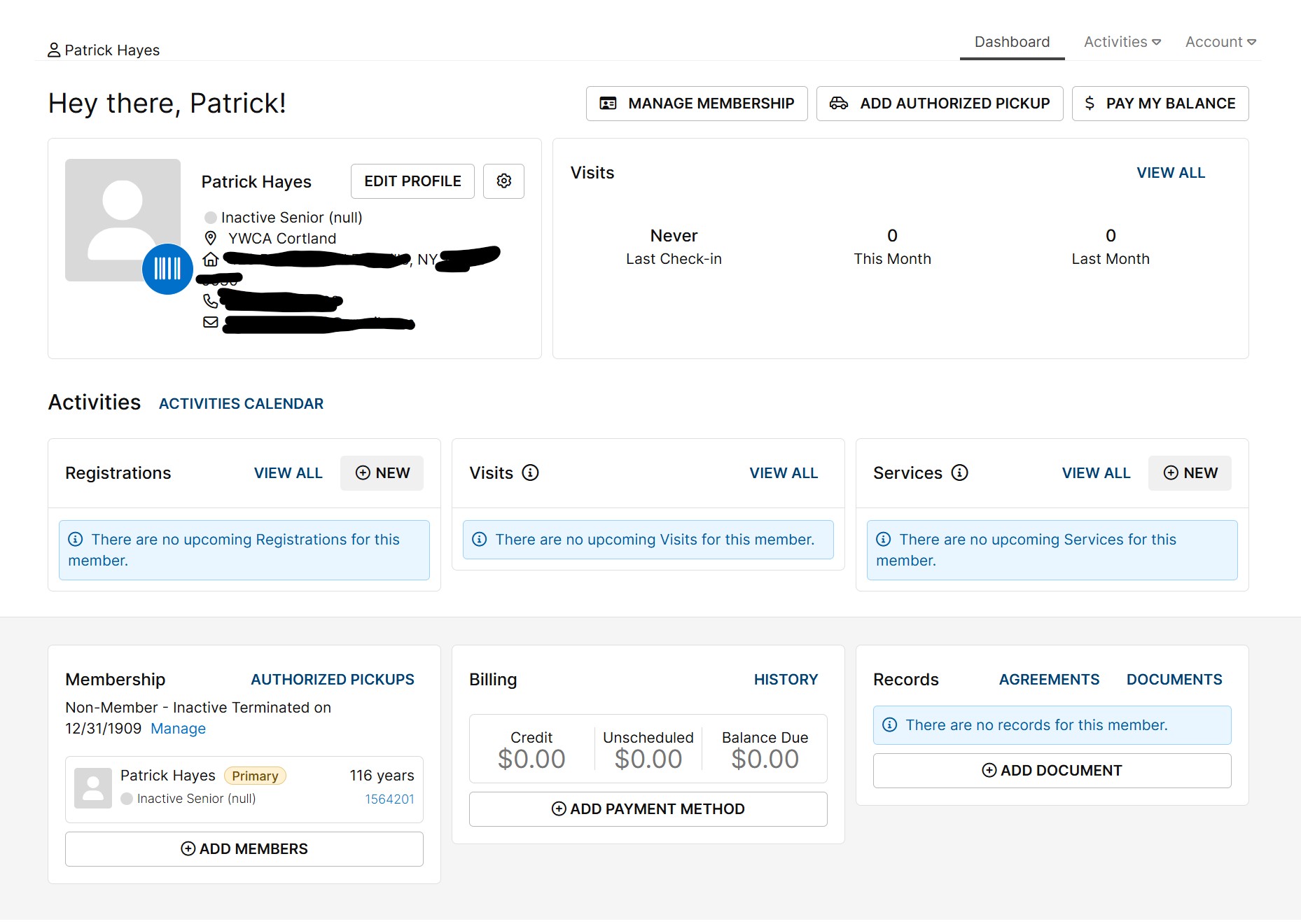
a) Don’t be alarmed if your profile shows you are 116 years old! This just means we didn’t have your birthdate in our previous membership management system. Click on the ‘EDIT PROFILE’ button in the top left of the screen, near your name, or click into the box at the bottom left, near your name and age, to update your profile.
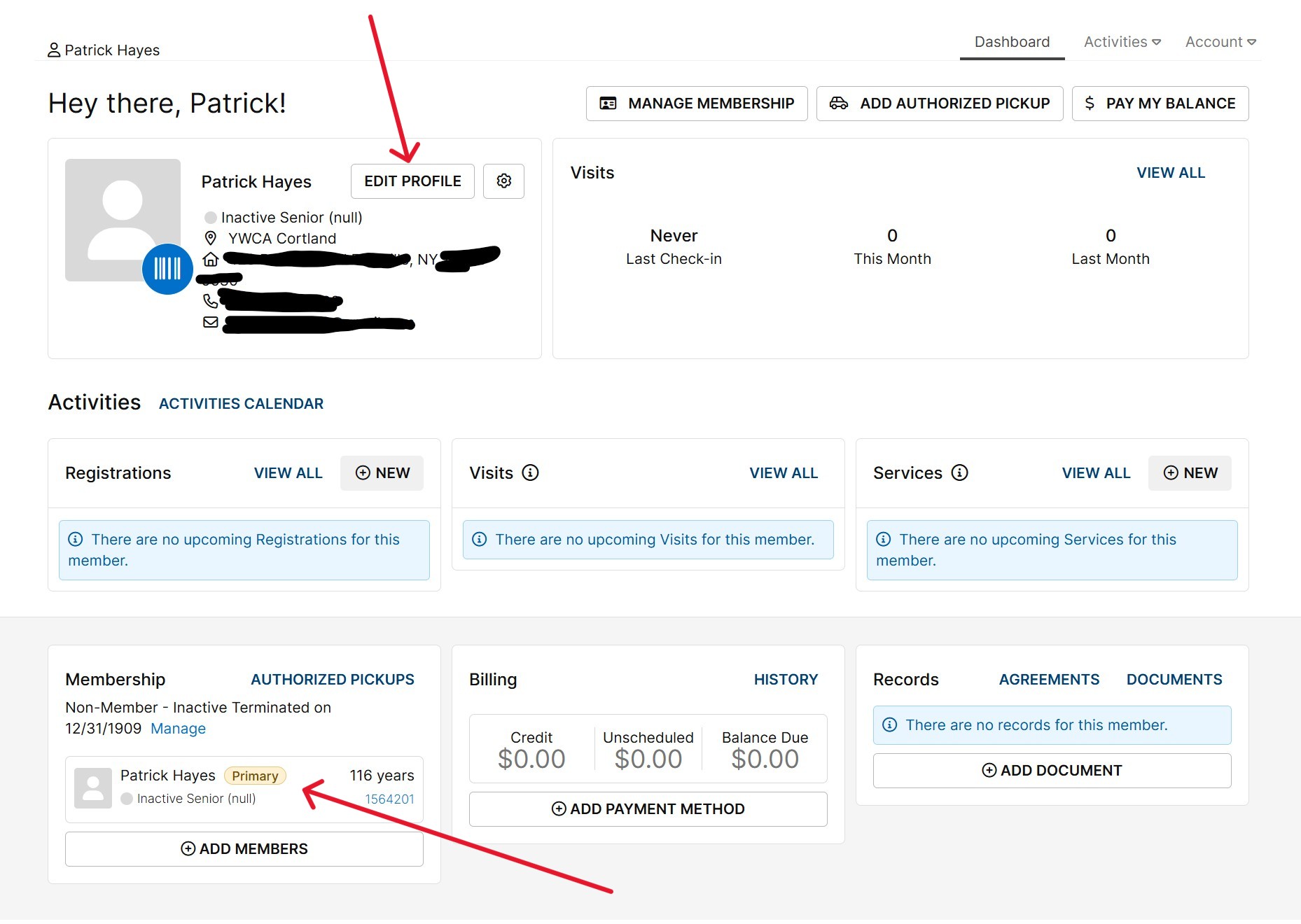
b) You can update your date of birth, contact and demographic information, add an emergency contact and an employer, indicate how you heard about us, and select areas of interest. If you’d like to receive text message notifications and updates in the future, please make sure to opt in under the “Primary Phone” option if this is a cell phone or under the “Allow SMS Text” under the “Cell/Other Phone” option if you prefer to list your home phone number as the primary phone. Please also add an email address for future email notifications and updates. Required options are marked with red asterisks. Note that the “Areas of Interest” in the image below are old options that have been updated to better reflect YWCA Cortland programming and offerings.
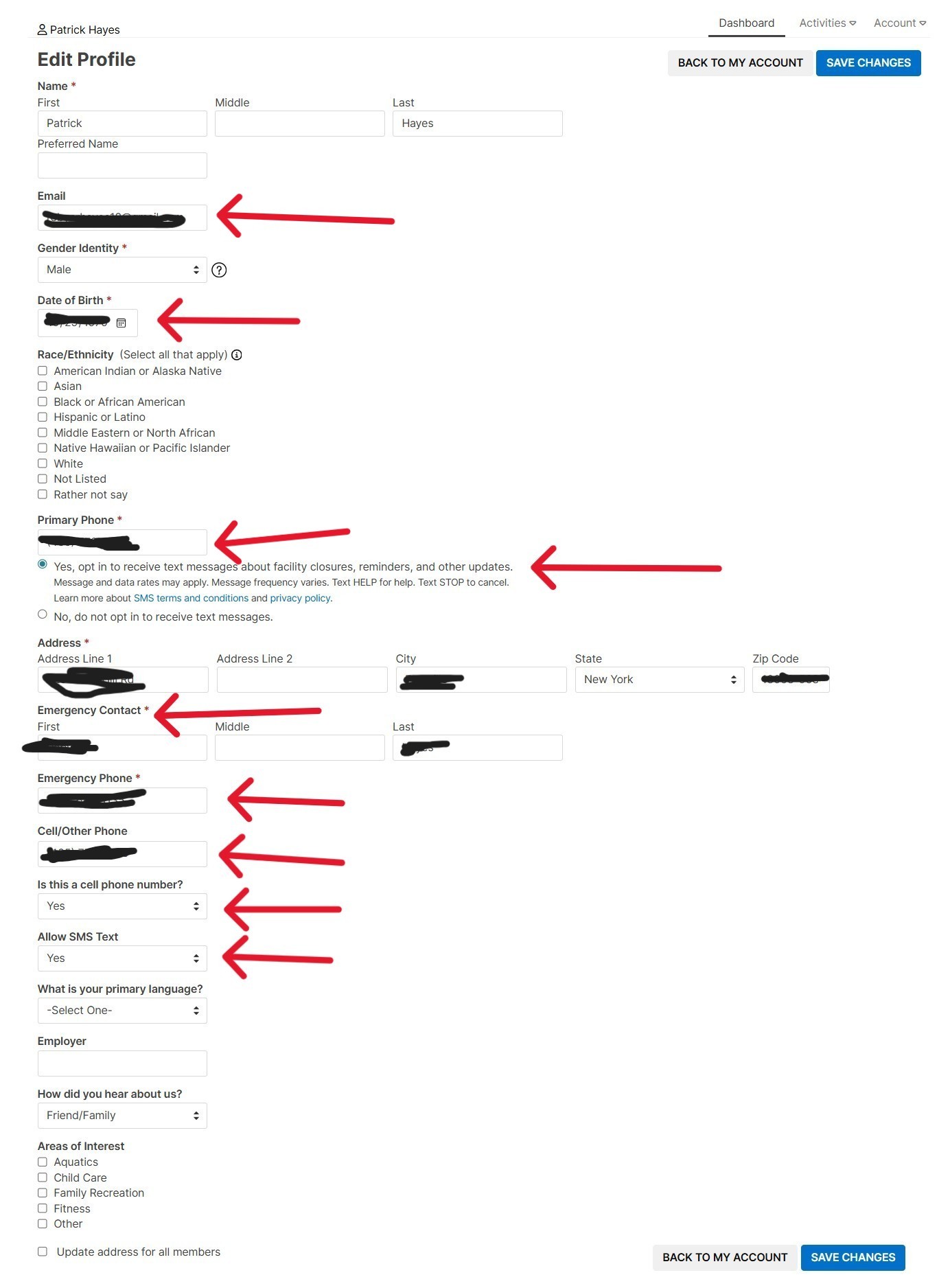
4) Get a digital copy of your membership Barcode to scan at our front desk.
a) Click on the blue barcode image at the top left of your profile to get the prompt to show up that lets you send your Barcode to your cell phone. When the pop-up box shows up at the bottom of your screen, click the blue ‘ADD TO WALLET’ button.
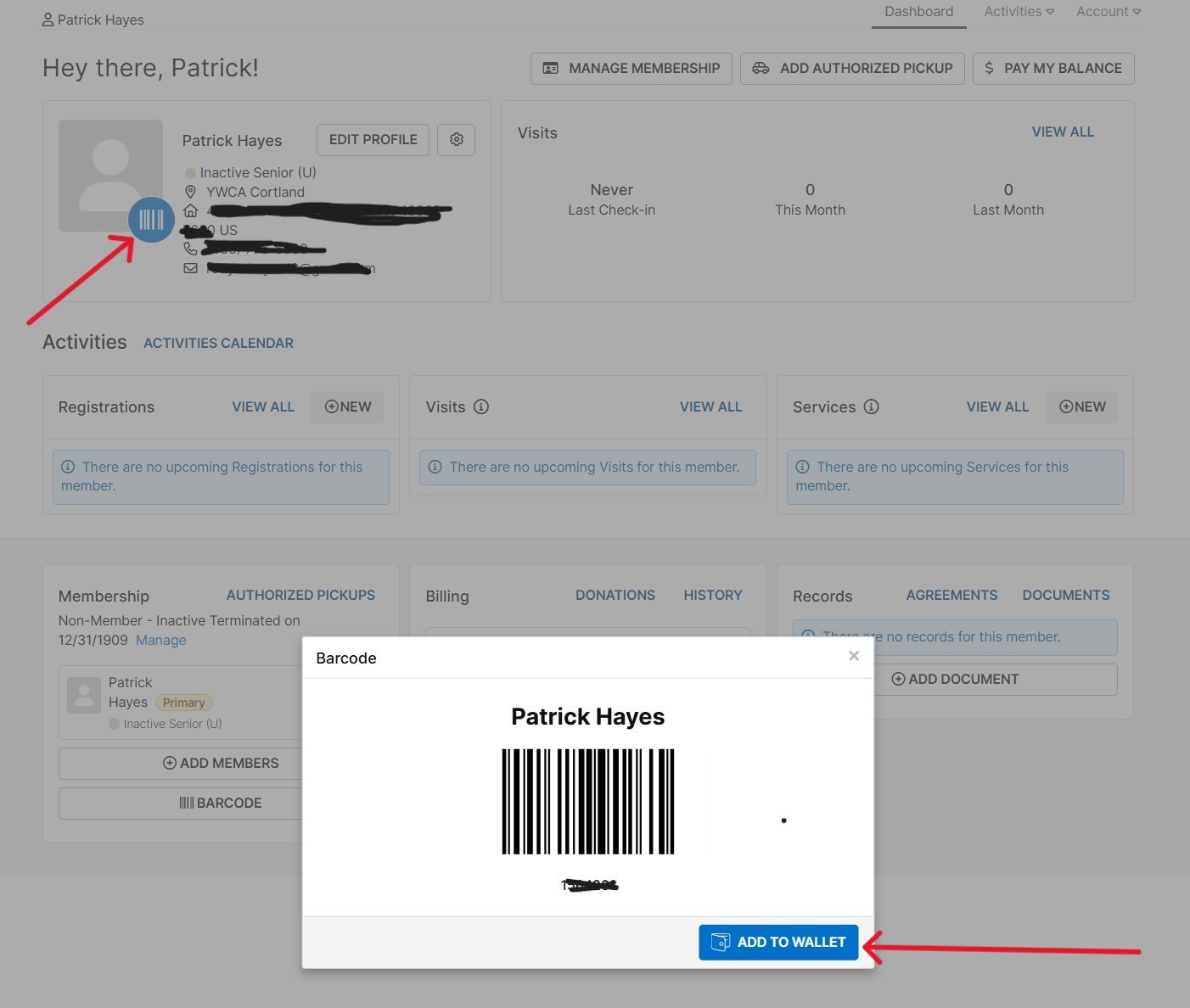
b) Enter your cell phone number in the ‘SEND LINK TO’ box if a number didn’t autopopulate and then click the blue ‘SEND’ button.
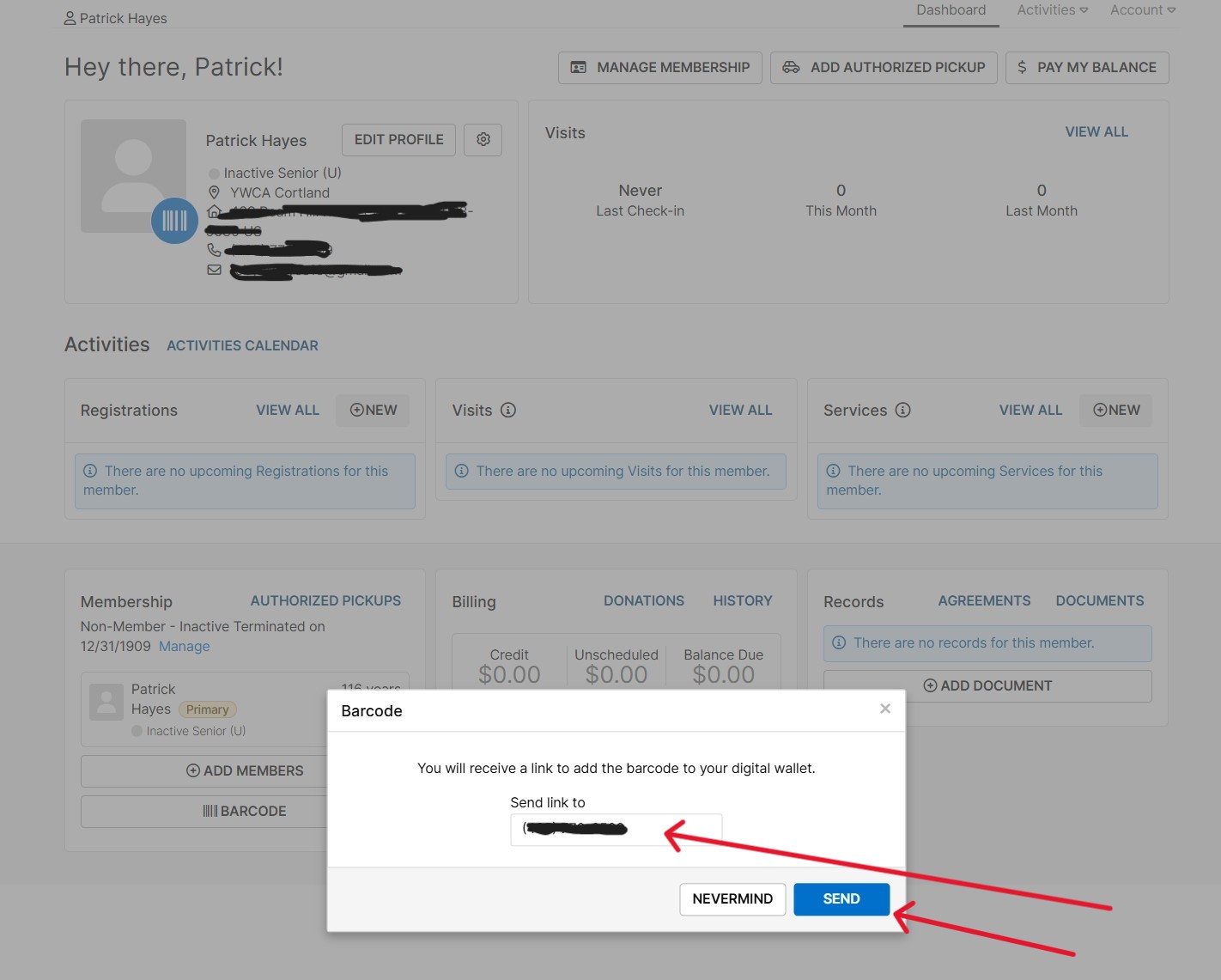
c) Click the link in the text message you receive and follow the instructions for adding your membership Barcode to your phone’s digital wallet.
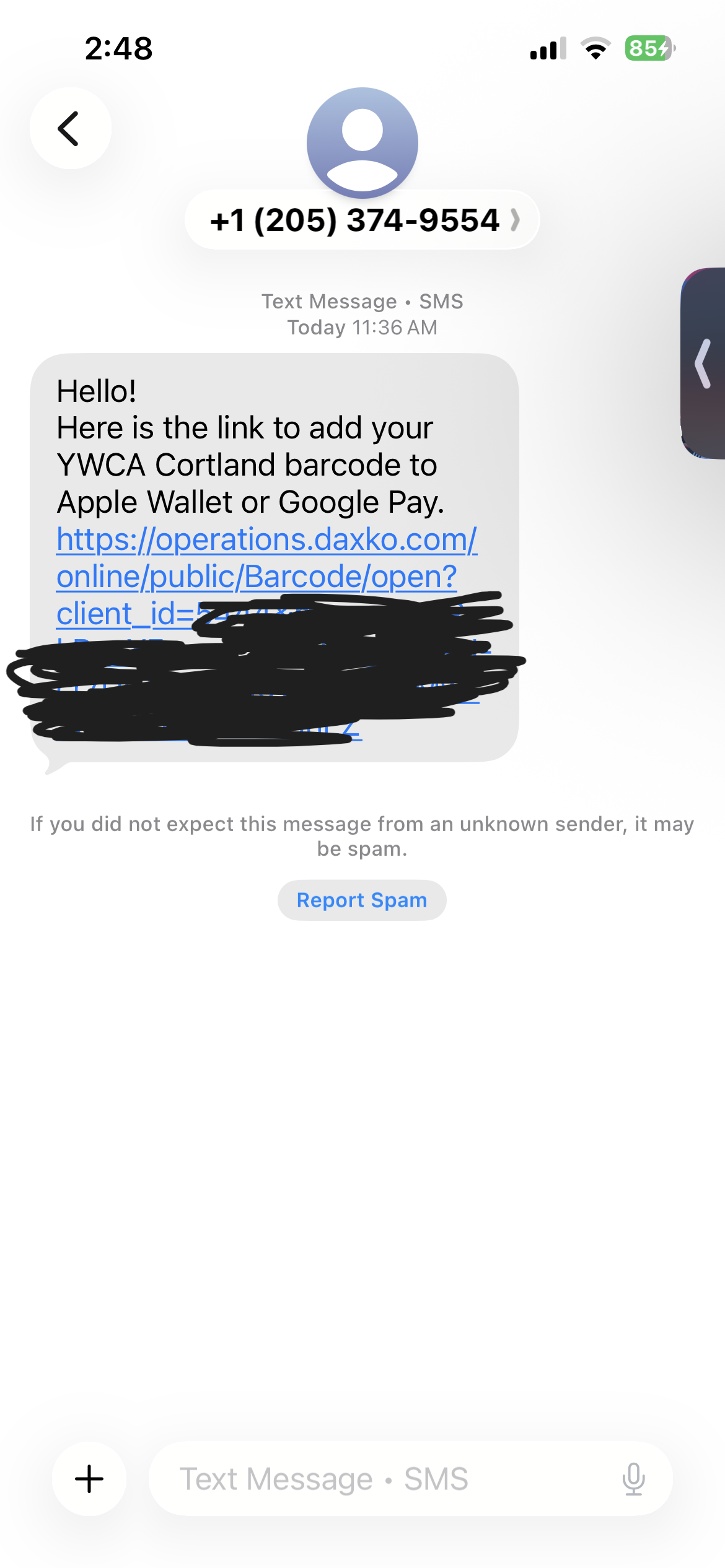
d) If you don’t wish to add your membership Barcode to a digital phone wallet, you can take a screenshot of it with your phone’s camera and save it as a favorite in your photo album.
5) Stay tuned for future updates when online registration capabilities go live!
Feel free to ask our staff for assistance by visiting the front desk or calling 607-753-9651.
We look forward to delivering improved member experiences as the rollout continues. As a reminder, these will include:
- Registering and paying online at your convenience for program offerings (i.e. Child Care services, Wellness memberships, and amenities like the pool) and specialty programming (i.e. swim lessons, gymnastics, Tai Chi, and meditation, etc.).
- Receiving personal notifications by text and/or email about class, program, or service cancellations or unexpected building closures.
- Renewing your membership and updating your personal information on demand.
- Participating in expanded offerings and programming from new instructors that will be included in our Wellness packages.